Windows 10 reached its end of life on 14th of October this year. Since then, its users have started getting regular reminders to move to Windows 11. However, for some of those users it does not seem to be a good move.
Some more background for why the users may want to stay on Windows 10. You may want to jump just to the change implementation steps instead
Similarly to many previous Windows editions, Windows 11 still seems to be far away from being a reliable operating system. I hope it will reach that stage at some point but it may take a couple of years. I can remember some Windows editions that have never achieved that status. Windows Millennium and Windows Vista were absolute nightmares for their users from the beginning to the end of their life cycles. Windows 98 and Windows XP started working more stable after quite long time since they had been released (since Second Edition and Service Pack 2 respectively). Windows 10 has not been much better (if at all). Though you could see the infamous Blue Screen of Death relatively less often there than e.g. in Windows Vista, you might have encountered another serious issues after the standard system updates that could affect you badly. However, over the time, the users get used to Windows 10 and now are not much happy to change it to the new system and start facing the new challenges (problems). Staying with Windows 10 makes perfect sense if you use your Windows 10 machine just for running a particular application and you are very careful about using the Internet there.
There are four Windows registry settings that all together stop the upgrade reminders from popping up. I recently created a small batch that may help with applying those changes. You can check both the batch and the registry file content on GitHub.
To implement registry changes, follow the steps below.
- For your safety, you may want to create a restore point. If something went wrong you would be able to return to the Windows state from before these changes. Have a look at the manual at the link below
Windows TenForums - How to Create a System Restore Point in Windows 10
- Download the archive file with the batch and the registry settings to your local disk and extract the files from the archive (usually by right-button-click on the zip file and choosing Extract, unless you have some archive application integrated with a Windows GUI).
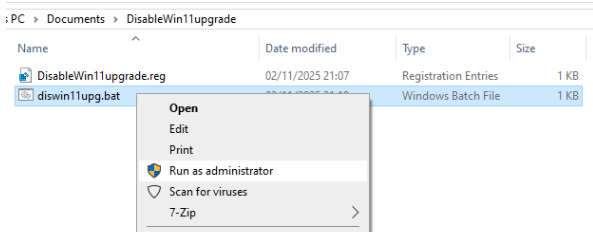
- From inside the unpacked directory run the batch as administrator.
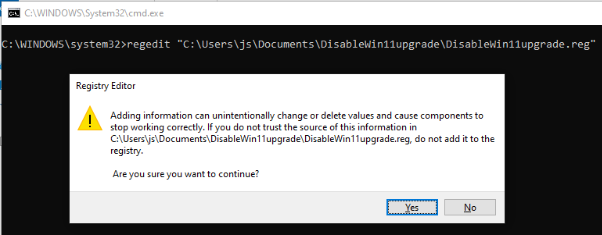
- Confirm applying the changes.
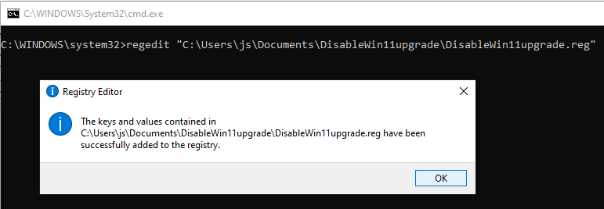
- You should get a confirmation that the changes have been implemented.
- Restart Windows. Since now, you should not get the any Windows upgrade notifications.
Note.
I tested it just on Windows 10 Pro. Although it also should work for the Home edition, I am not able to confirm that.


Comments